7/06/2011

How to transfer dvd/movies/video/images/music from pc to ipad 2 and from iPad 2 to pc

As a professional iPad 2 file transfer, Tipard iPad 2 Transfer Pro consists of iPad 2 to PC Transfer and PC to iPad 2 Transfer. Once owning it, you not only can transfer iPad 2 movies, songs and photos to PC for backup and safety, but also can add video, audio and image files from your computer to iPad 2 to enjoy. Plus, you are allowed to transfer video, audio, image and ringtone files between iPhone, iPhone 4 and PC.

Step 1: Install & Run Tipard iPad 2 Transfer Pro on Your Computer

Download and double click Tipard iPad 2 Transfer Installation files; then follow the instructions to finish the installation.

Step 2: Connect your iPad 2


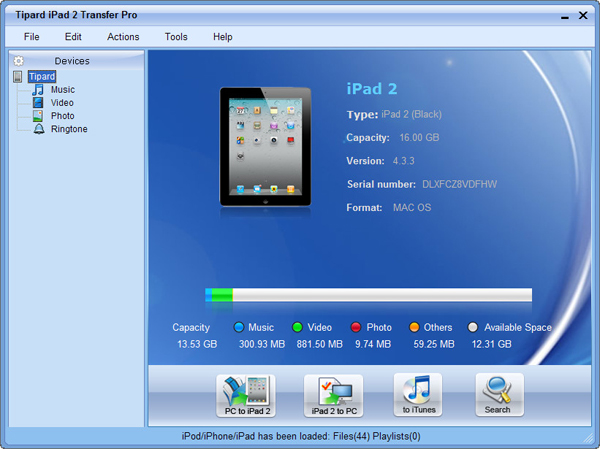
Connect your iPad 2 to PC via Apple dedicated data line, then you will see the following image.
Once connecting, your iPad 2 will be recognized instantly, and the detailed information about your iPad 2 will be displayed, including type, capacity, version and serial number. Plus, it will show the specific capacity values of different iPad 2 files which have taken, and the available space.
Step 3: Transfer various iPad 2 files to PC

On the left side of the main interface, you will see the display list, which will show your various iPad 2 files in different types. You can freely choose any kind of file type(Music, Video, Photo) to transfer to your PC for backup and safety.

A: Transfer iPad 2 songs

Click "Music" on the display list, then the right side of the interface will display all your music files in details as the following screenshot shows.
In front of each listed music file, there is a check box, you can check all to choose all music files or just one to choose, then click "iPad 2 to PC" image button on the bottom of the interface to start transferring music files from iPad 2 to PC.
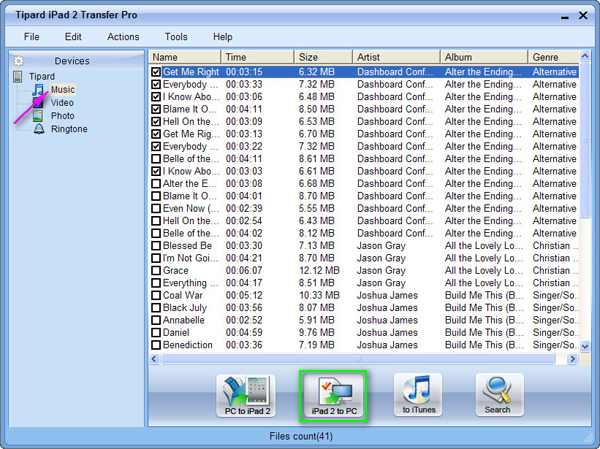
Transfer iPad 2 songs

B: Transfer iPad 2 video files

Click "Video" on the display list, then the right side of the interface will display all your video files in details as the following screenshot shows.
In front of each listed video file, there is a check box, you can check all to choose all movie files or just one to choose, then click "iPad 2 to PC" image button on the bottom of the interface to start transferring video files from iPad 2 to PC.
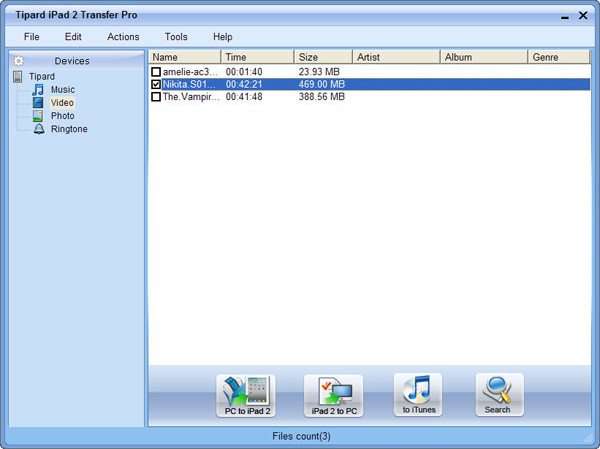
Transfer iPad 2 movies

C: Transfer iPad 2 image files

Click "Photo" on the display list, then the right side of the interface will display all your image files in details as the following screenshot shows.
In front of each listed picture file, there is a check box, you can check all to choose all photo files or just one to choose, then click "iPad 2 to PC" image button on the bottom of the interface to start transferring photo files from iPad 2 to PC.
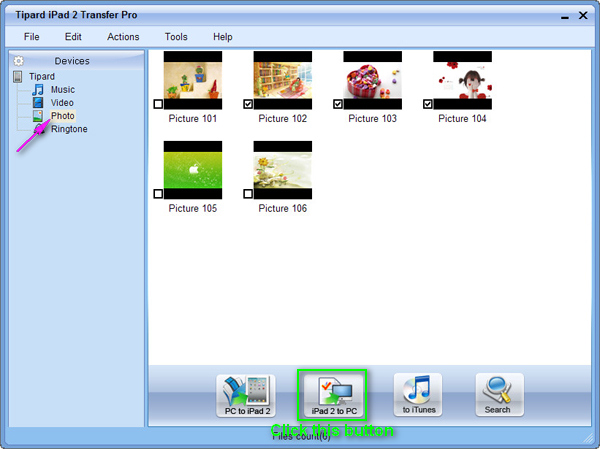
Transfer iPad 2 images

Step 4: Transfer various files from PC to iPad 2

Click any one of three file types shown on the display list, then add video/audio/image files from PC to iPad 2.

D: Add video/DVD files from PC to iPad

Click "Video" on the display list, then click "PC to iPad 2" image button on the bottom of the interface. After that, a new window will pop up as the following screenshot shows.
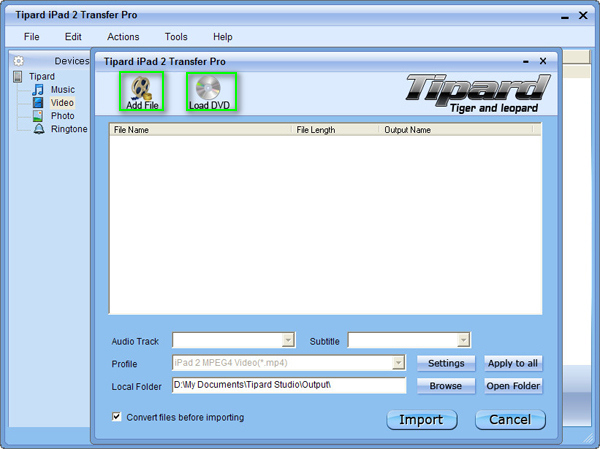
Add window

D-1: Add video files from PC to iPad 2

For adding video files, you can click "Add File" image button and choose the target video file on your PC, then the chosen video will be listed on the display list. Then just click the activated "Import" button to transfer the target video file to your iPad 2.
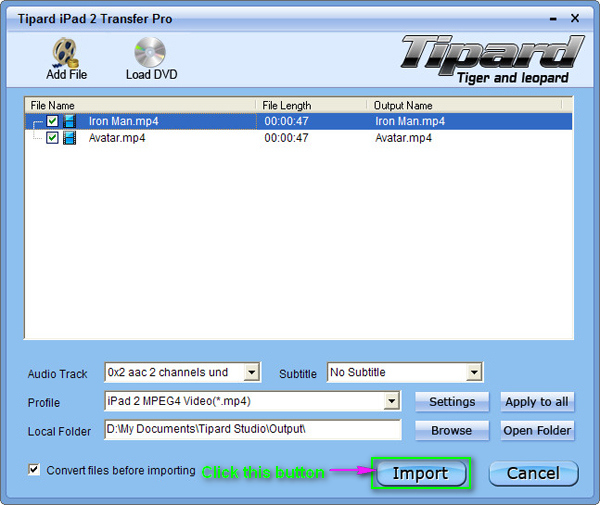
Add video to iPad 2

D-2: Add DVD movie from PC to iPad 2

For Loading DVD, you can click "Load DVD" image button and choose the target DVD default folder, then all chapter files of the chosen DVD file will be listed on the display list. You can choose any one chapter file or the whole DVD folder, then just click the activated "Import" button to convert the target DVD file to iPad 2 compatible video formats, and then transfer them to your iPad 2.
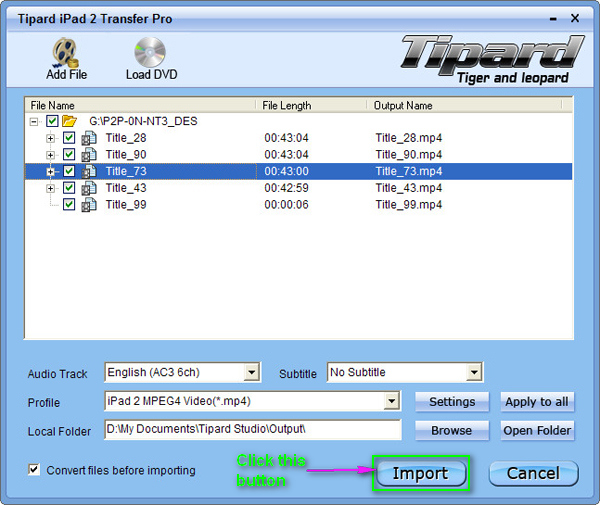
Load DVD movie to iPad 2

E: Transfer Music files to iPad 2

Click "Music" on the display list, then click "PC to iPad 2" image button on the bottom of the interface. After that, a new window will pop up as the following screenshot shows.
You can click "Add File" image button and choose the target music file on your PC, then the chosen audio file will be listed on the display list. Then just click the activated "Import" button to transfer the target songs to your iPad 2.
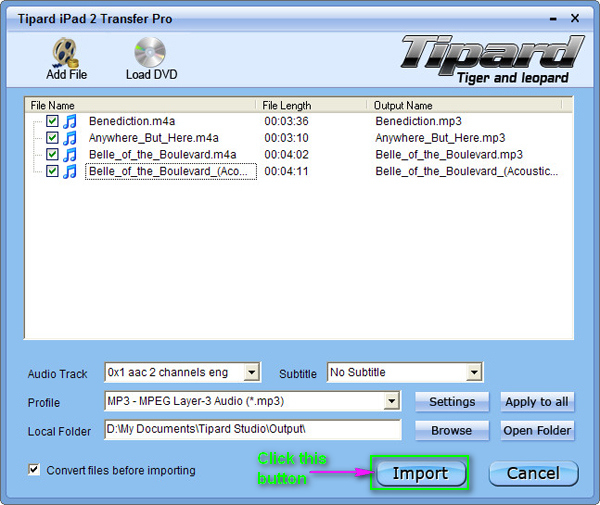
Add songs to iPad 2

F: Transfer image files to iPad 2

Click "Photo" on the display list, then click "PC to iPad 2" image button on the bottom of the interface. After that, a new window will pop up to allow you to choose the target photo files from your PC to transfer them to iPad 2.
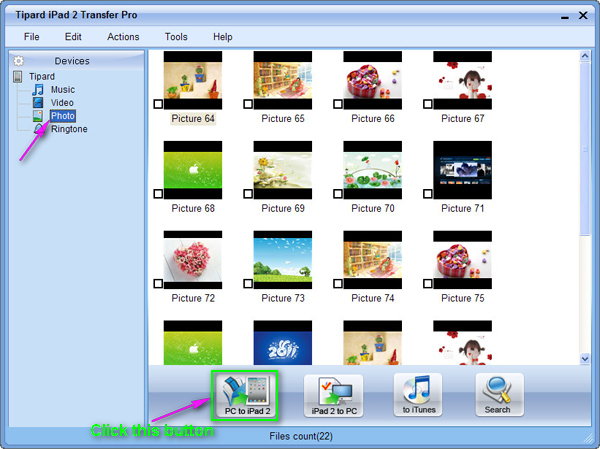
Transfer photo to iPad 2

6/09/2011

How to Convert various video files to iPad 2?


Since movies stand out as an essential tool of entertainment, there should be an extensive collection of flicks from all genres at everybody’s disposal. There is least possibility that anyone would love to watch movies of a particular genre only. Every individual has his own tastes and preferences. Some may like only action films, while others may gain pleasure from watching romantic movies.

Tipard iPad 2 Video Converter is a multi-functional video converter specially designed for iPad 2 users. Its powerful video converting function can easily convert any kind of video files, including 3GP, MP4, AVI, MTS, even HD video to iPad 2 compatible video and audio formats. Plus, it has amazing video editing functions to allow users to trim, crop, effect or watermark any video to get personalized video file at random.

Step 1: Install and register Tipard iPad 2 Video Converter

Download Tipard iPad 2 Video Converter, then double click the downloaded installation file to start installation; next, follow the instructions to finish the installation.

Step 2: Load video file

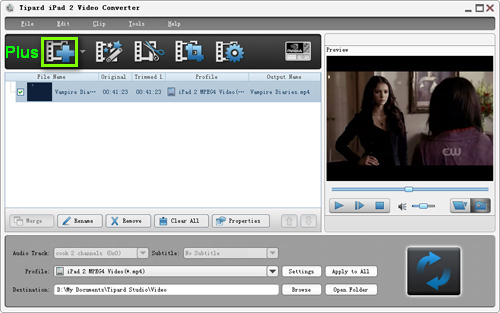
Load any video file you want to convert by clicking "Add Video" option under the "File" menu. Or you can click the "Plus" image button in the main interface.

Step 3: Choose output format

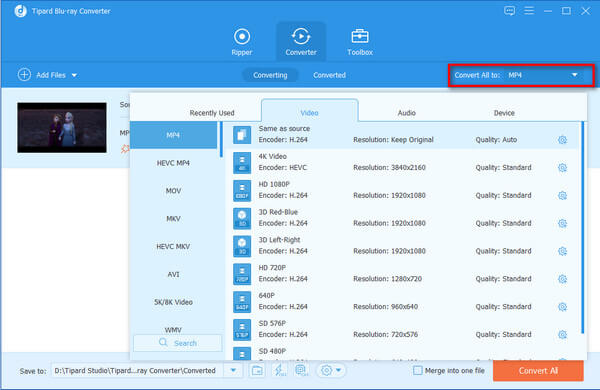
Based on the formats supported by your portable devices, you can select the output format for the movie from the "Profile" column and set the destination folder. Also you are allowed to select your preferred audio track and subtitle for your video.

Convert Video to iPad 2

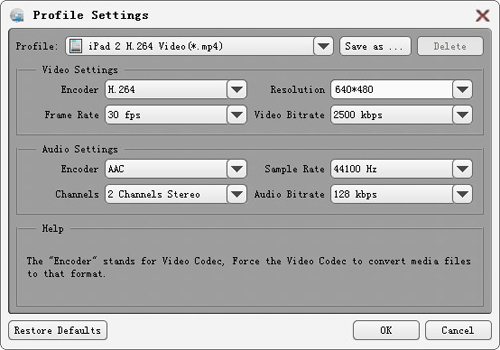
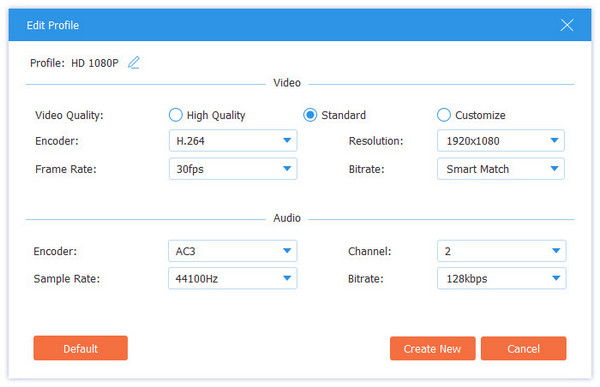
Detailed video and audio settings are provided by this iPad 2 Video Converter for you to adjust, such as video Encoder, Frame Rate, Resolution, Bitrate and audio Encoder, Channels, Bitrate, Sample Rate, etc. Even more, you can input your own parameters. The well-customized profile can be saved as "User-Defined" for your later use.

Video to iPad 2 Converter, iPad 2 Converter

Step 4: Edit any video as you like

1. Adjust output video effect

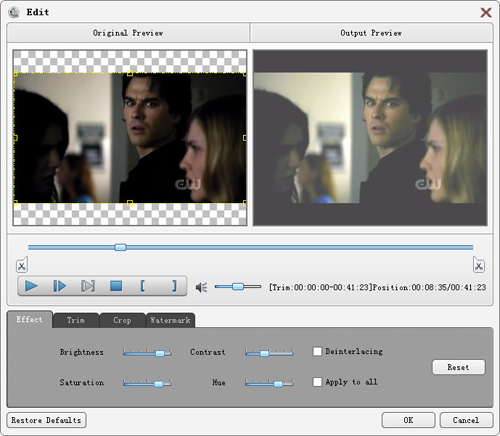
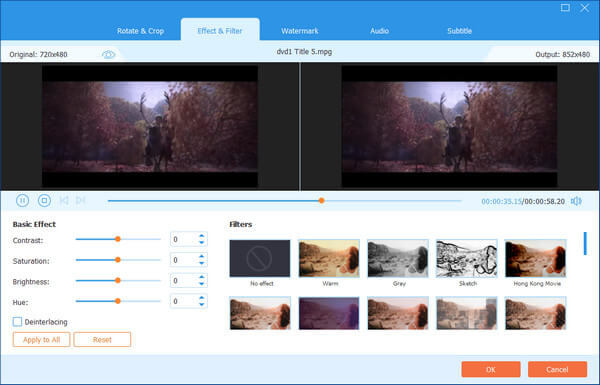
Click "Clip" on the initial interface, and choose "Effect" command after context menu popped up to open the Effect window. Or you can just click button to open the Effect window.
You are allowed to freely drag the Brightness, Contrast, Saturation and Hue 4 Effect scroll bars to choose the perfect video effect you like best.

Adjust video effect

2. Trim any video

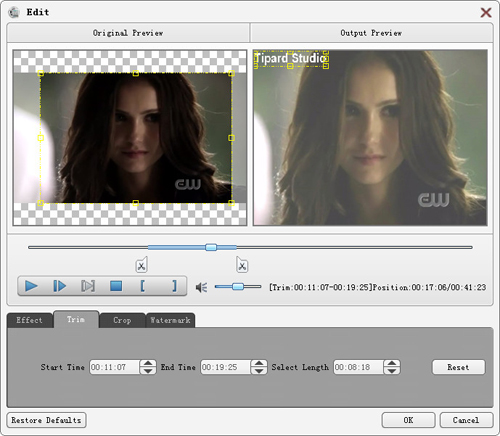
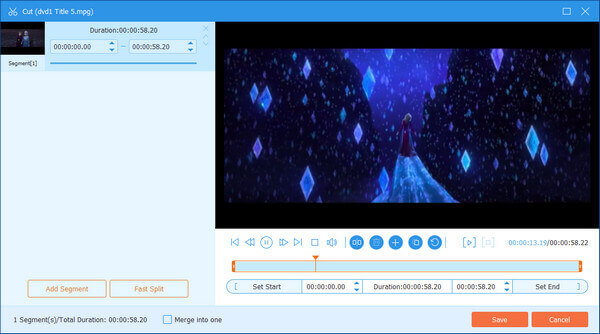
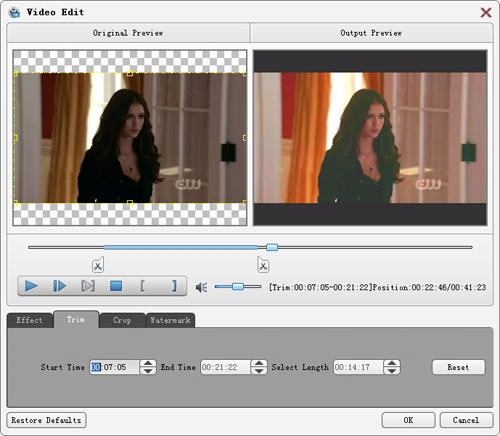
Click "Clip" on the initial interface, and choose "Trim" command after context menu popped up to open the Trim window. Or you can just click button to open the Trim window.
Tipard iPad 2 Video Converter provides you two methods to trim your video length.
Method 1: Enter the start time in the "Start Time" box, then enter the end time in the "End Time" box and click OK.
Method 2: Drag the scissors bars under the preview window when you want to trim, then the time will be shown in the Start Time box and End Time box for your reference.
After you set the trim time, the length of the captured clip will be shown in the Select Length box for your reference.

Trim any video

3. Crop any video

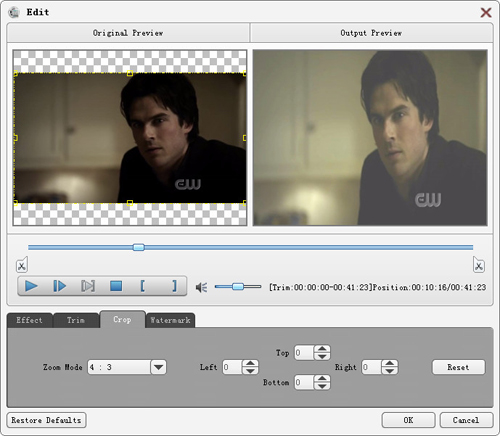
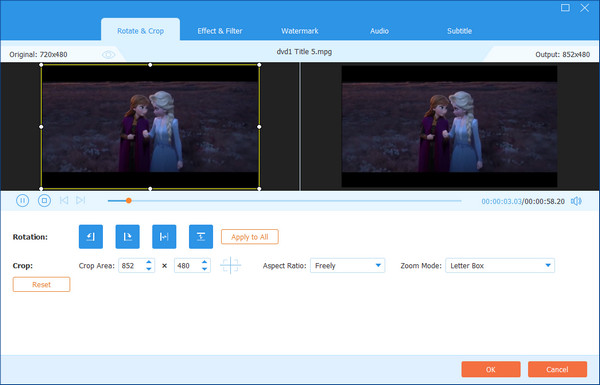
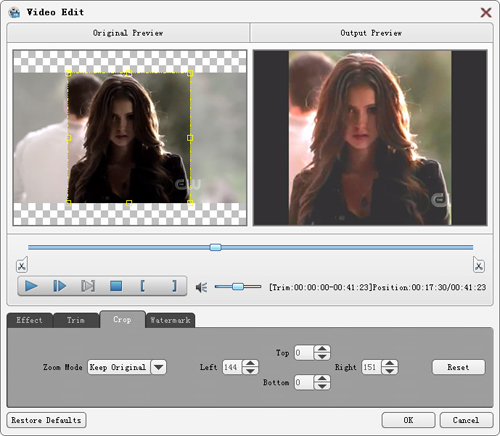
Click "Clip" on the initial interface, and choose "Crop" command after context menu popped up to open the Crop window. Or you can just click button to open the Crop window.
Tipard iPad 2 Video Converter allows you to remove the black edges around your movie video and customize the size of video play region.
There are three methods available to crop your video:
Method 1:Choose the output aspect ratio from the "Zoom Mode" drop-down list according to your need.
There are four choices available: Full Screen, Keep Original, 16:9 and 4:3.
Method 2: Crop by adjusting the crop frame
The crop frame is the yellow line around the movie video. There are eight small adjustment boxes on the crop frame. Each adjustment box allows you to crop the movie video from a different position. To crop your movie video, you can just move your mouse cursor to an adjustment box and drag the crop frame.
Method 3: Crop by setting the crop values
There are four crop values on the lower right part of the Crop window: Top, Bottom, Left and Right. You can set each value to crop your movie video, and the crop frame will move accordingly.
Note: After you crop your video and set the zoom mode, the result can be previewed in the Preview window of the program main interface.

Crop any video

4.Add a text or image watermark

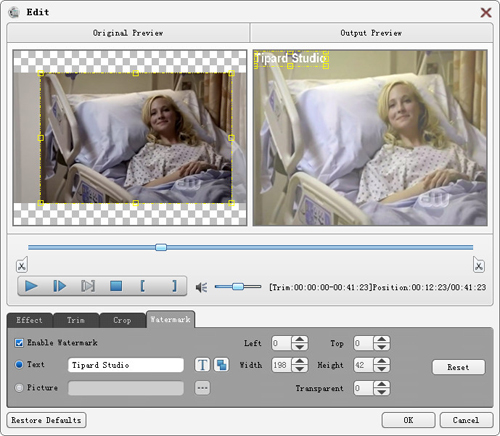
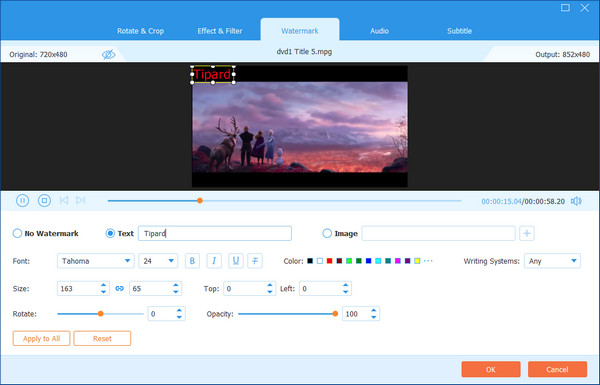
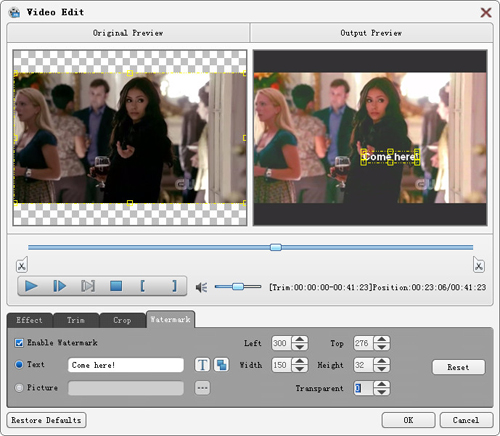
Click "Clip" on the initial interface, and choose "Watermark" command after context menu popped up to open the Watermark window.
Check the "Enable Watermark" checkbox, then select "Text" or "Picture" radio button to add a text or image watermark to any video as you like.

Add watermark

Step 5: Merge multiple video files to a single one

Load more than one video files need to be merged, then select all contents in the display list; after that, the "Merge" button on the initial interface will be activated accordingly.
Then, click the "Merge" button, the temporary file of the merger will be listed in the display list. Then temporary file by defaul will be named "Merge", and you can playing it in the "Preview" window to preview the merger video effect.

Step 6: Capture your favorite pictures when you preview

When you see any wonderful image, just click button in the Preview window, then click button to open the folder to find captured picture.

Step 4: Start conversion

Click "convert" image button to start video converting.

6/05/2011

How to Rip BD/ DVD and Convert Video to DivX, MP4, AVI, 3GP, MPEG, FLV, etc.?

A throwback to the high-octane car chase movies of the '70s (Race with the Devil certainly comes to mind), Drive Angry 3D stars Oscar-winner/paycheck-grabber Nicolas Cage, his stone scowl now bestowed upon a scruffy character named John Milton. Milton's a dad whose daughter was killed after fleeing a satanic cult, and now her baby daughter is going to be sacrificed by the cult leader beneath the full moon in two days time in order to claim the power of Hell. Or so he thinks. The race to Louisiana--site of the ritual--is on, with fists and bullets (and sometimes cars) flying.

The second disc in this set, a standard 2D Blu-ray Disc, is where most of the bonus content can be found. In addition to a running audio commentary from director/writer Patrick Lussier and writer/supporting player Todd Farmer, there are two deleted scenes with optional commentary, about a-minute-and-a-half together, in HD, although both could be considered inconsequential.

"Access: Drive Angry" however is in excellent Bonus View "interactive viewing experience" that can tally Milton's carnage, plus display relevant trivia/facts and filmmaker interviews over the movie, and we can select any or all of these different feeds. The last Summit Entertainment disc I reviewed, RED, has a similar Bonus View "Access" feature: This is a studio that really gets Blu-ray.

Then how to view such perfect movie on your devices or how to convert this outstanding work to your compiter support format? you can use Tipard video converter.

Tipard Blu-ray Converter, versatile Blu-ray decoder, is specially designed for all Blu-ray users. With powerful deciphering function, this Blu-ray ripper can remove various copy protections from any blu-ray disc. After decipherment, you can easily convert any Blu-ray movie or video file to any kind of video or audio format. Then you can enjoy any hot movie on your mobile devices, including iPad, iPhone 4, iPod touch, PSP, etc.


Step 1: Load Blu-ray, DVD or video file

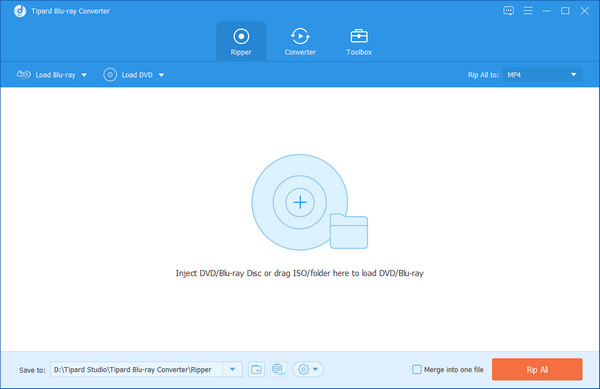
After registration, you will see the the following screenshot.

Interface

>>For Blu-ray file, you can load any Blu-ray disc or file that you want to convert by clicking "Load Blu-ray Playlist"/"Load Blu-ray File" option under the "File" pull-down menu, or just click the "Blu-ray Plus" image button in the main interface;
>>For DVD file, you can load any DVD disc or folder that you want to convert by clicking "Load DVD Rom"/"Load DVD folder"/"Load IFO Files" option under the "File" pull-down menu, or just click the "DVD Plus" image button in the main interface;
>>For video files, you can load any video file you want to convert by clicking "Add Video" option under the "File" pull-down menu. Or you can click the "Video Plus" image button in the main interface.

Step 2: Choose output format

Based on the formats supported by your portable devices, you can select the output format for the movie from the "Profile" column and set the destination folder. Also you are allowed to select your preferred audio track and subtitle for your video.

Convert Video to MP4

Detailed video and audio settings are provided by this Blu-ray Converter for you to adjust, such as video Encoder, Frame Rate, Resolution, Bitrate and audio Encoder, Channels, Bitrate, Sample Rate, etc. Even more, you can input your own parameters. The well-customized profile can be saved as "User-Defined" for your later use.

Blu-ray to MP4 Converter, Blu-ray Converter

Step 3: Edit output video as you like

1. Adjust output video effect

Click "Clip" on the initial interface, and choose "Effect" command after context menu popped up to open the Effect window. Or you can just click button.
You are allowed to freely drag the Brightness, Contrast, Saturation and Hue 4 Effect scroll bars to choose the perfect video effect you like best.

Adjust video effect

2. Trim any video

Click "Clip" on the initial interface, and choose "Trim" command after context menu popped up to open the Trim window. Or you can just click button to open the Edit window, then click "Trim" button.
Tipard Blu-ray Converter provides you three methods to trim your video length.
Method 1: Enter the start time in the "Start Time" box, then enter the end time in the "End Time" box and click OK.
Method 2: Drag the scissors bars under the preview window when you want to trim, then the time will be shown in the Start Time box and End Time box for your reference.
After you set the trim time, the length of the captured clip will be shown in the Select Length box for your reference.

Trim any video

3. Crop any video

Click "Clip" on the initial interface, and choose "Crop" command after context menu popped up to open the Crop window. Or you can just click button to open the Edit window, them click "Crop" button.
Tipard Blu-ray Converter allows you to remove the black edges around your movie video and customize the size of video play region.
There are three methods available to crop your video:
Method 1:Choose the output aspect ratio from the "Zoom Mode" drop-down list according to your need.
There are four choices available: Full Screen, Keep Original, 16:9 and 4:3.
Method 2: Crop by adjusting the crop frame
The crop frame is the yellow line around the movie video. There are eight small adjustment boxes on the crop frame. Each adjustment box allows you to crop the movie video from a different position. To crop your movie video, you can just move your mouse cursor to an adjustment box and drag the crop frame.
Method 3: Crop by setting the crop values
There are four crop values on the lower right part of the Crop window: Top, Bottom, Left and Right. You can set each value to crop your movie video, and the crop frame will move accordingly.
Note: After you crop your video and set the zoom mode, the result can be previewed in the Preview window of the program main interface.

Crop any video

4.Add a text or image watermark

Click "Clip" on the initial interface, and choose "Watermark" command after context menu popped up to open the Watermark window. Or you can just click button to open the Edit window, them click "Watermark" button.
Check the "Enable Watermark" checkbox, then select "Text" or "Picture" radio button to add a text or image watermark to any video as you like.

Add watermark

Step 4: Merge multiple video files to a single one

Load more than one Blu-ray/DVD/video files need to be merged, then select all contents in the display list; after that, the "Merge" button on the initial interface will be activated accordingly.
Then, click the "Merge" button, the temporary file of the merger will be listed in the display list. Then temporary file by defaul will be named "Merge", and you can playing it in the "Preview" window to preview the merger video effect.

Step 5: Capture your favorite pictures when you preview

When you see any wonderful image, just click button in the Preview window, then click button to open the folder to find captured picture.
Step 6: Start conversion

Click "convert" image button to start to rip Blu-ray/DVD or convert video file to any video or audio format as you like.

5/30/2011

How to Convert Mod to various video formats?

Exactly a week after Joplin was nearly leveled by the deadliest tornado to strike the U.S in decades, President Barack Obama visited the Missouri city to offer hope to survivors and promises of help.

Obama came face to face Sunday with the legions of homeless, consoling the community as it remembered the more than 130 people killed in the storm. The memorial service erupted in cheers when Obama said, "I promise you your country will be there with you every single step of the way," a pledge he extended to all parts of the nation raked by violent storms this season.

The service punctuated a day of remembrance as authorities pressed on with the task of identifying the victims and volunteers combed through the apocalyptic landscape of wrecked neighborhoods where nothing was left whole. Now the following is today's share.

Tipard MOD Converter is specially designed for all video camera fans, and it highly supports Sony, JVC and Panasonic HD video cameras, and can convert TS, MTS, MOD, MOV and many DV files to iPad, iPad 2, iPhone, Samsung Galaxy Tab, etc. Plus, with CUDA technology, it has gained 6X faster converting speed.

Step 2: Load MOD file

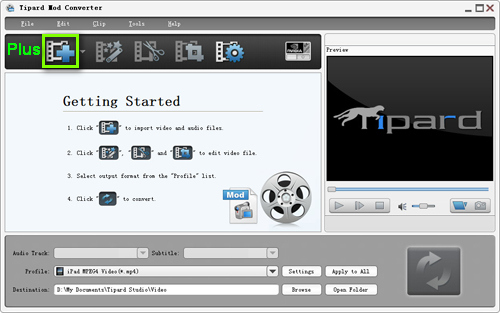
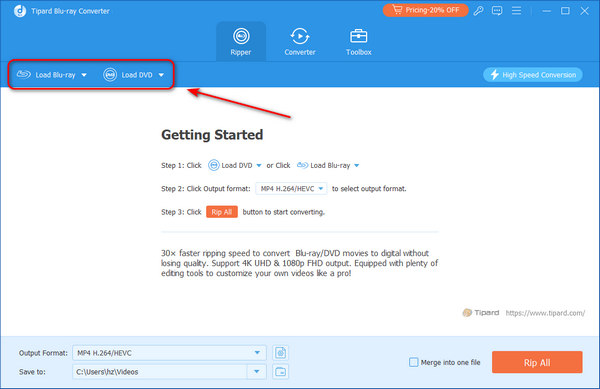
After install, you will see the the following screenshot.

Interface

Load any MOD file you want to convert by clicking "Add Video" option under the "File" menu. Or you can click the "Plus" image button in the main interface.

Step 3: Choose output format

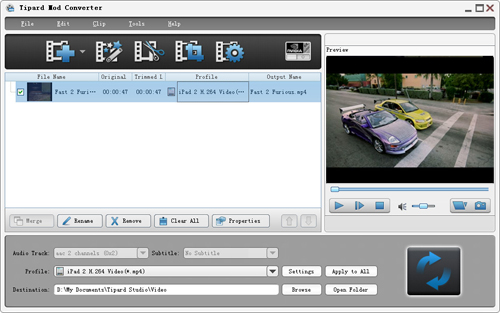
Based on the formats supported by your portable devices, you can select the output format for the movie from the "Profile" column and set the destination folder. Also you are allowed to select your preferred audio track and subtitle for your video.

Convert MOD to MP4

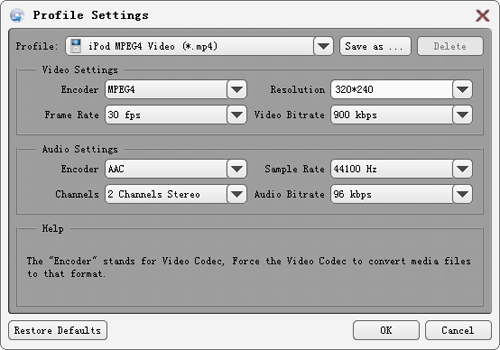
Detailed video and audio settings are provided by this MOD Converter for you to adjust, such as video Encoder, Frame Rate, Resolution, Bitrate and audio Encoder, Channels, Bitrate, Sample Rate, etc. Even more, you can input your own parameters. The well-customized profile can be saved as "User-Defined" for your later use.

MOD to MP4 Converter, MOD Converter

Step 4: Edit any MOD file as you like

1. Adjust output video effect

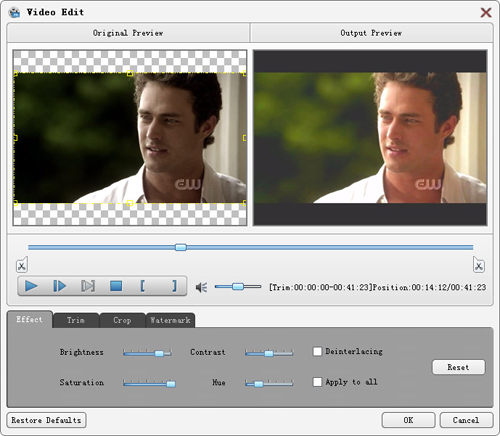
Click "Clip" on the initial interface, and choose "Effect" command after context menu popped up to open the Effect window. Or you can just click button to open the Effect window.
You are allowed to freely drag the Brightness, Contrast, Saturation and Hue 4 Effect scroll bars to choose the perfect video effect you like best.

Adjust video effect

2. Trim any video

Click "Clip" on the initial interface, and choose "Trim" command after context menu popped up to open the Trim window. Or you can just click button to open the Trim window.
Tipard MOD Converter provides you three methods to trim your video length.
Method 1: Enter the start time in the "Start Time" box, then enter the end time in the "End Time" box and click OK.
Method 2: Drag the scissors bars under the preview window when you want to trim, then the time will be shown in the Start Time box and End Time box for your reference.
After you set the trim time, the length of the captured clip will be shown in the Select Length box for your reference.

Trim any video

3. Crop any video

Click "Clip" on the initial interface, and choose "Crop" command after context menu popped up to open the Crop window. Or you can just click button to open the Crop window.
Tipard MOD Converter allows you to remove the black edges around your movie video and customize the size of video play region.
There are three methods available to crop your video:
Method 1:Choose the output aspect ratio from the "Zoom Mode" drop-down list according to your need.
There are four choices available: Full Screen, Keep Original, 16:9 and 4:3.
Method 2: Crop by adjusting the crop frame
The crop frame is the yellow line around the movie video. There are eight small adjustment boxes on the crop frame. Each adjustment box allows you to crop the movie video from a different position. To crop your movie video, you can just move your mouse cursor to an adjustment box and drag the crop frame.
Method 3: Crop by setting the crop values
There are four crop values on the lower right part of the Crop window: Top, Bottom, Left and Right. You can set each value to crop your movie video, and the crop frame will move accordingly.
Note: After you crop your video and set the zoom mode, the result can be previewed in the Preview window of the program main interface.

Crop any video

4.Add a text or image watermark

Click "Clip" on the initial interface, and choose "Watermark" command after context menu popped up to open the Watermark window.
Check the "Enable Watermark" checkbox, then select "Text" or "Picture" radio button to add a text or image watermark to any video as you like.

Add watermark

Step 5: Merge multiple video files to a single one

Load more than one video files need to be merged, then select all contents in the display list; after that, the "Merge" button on the initial interface will be activated accordingly.
Then, click the "Merge" button, the temporary file of the merger will be listed in the display list. Then temporary file by defaul will be named "Merge", and you can playing it in the "Preview" window to preview the merger video effect.

Step 6: Capture your favorite pictures when you preview

When you see any wonderful image, just click button in the Preview window, then click button to open the folder to find captured picture.
Step 4: Start conversion

Click "convert" image button to start video converting.