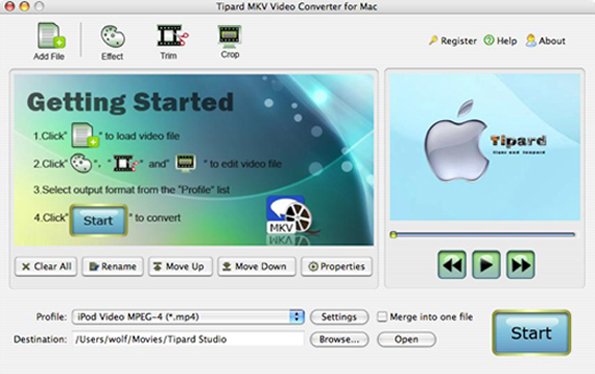
9/29/2010

How to Rip DVD and Convert video on OS X?

Part 1: How to Rip DVD and edit DVD to popular video on OS X

Step 0: Install and run Tipard DVD Ripper Pack for Mac and select Tipard DVD Ripper for Mac.
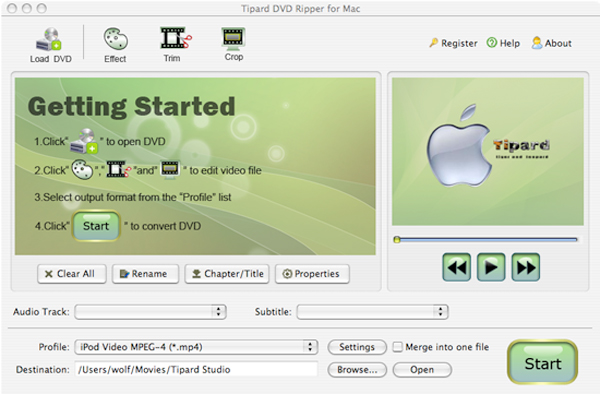
Step 1: Load your DVD


Step 2: Choose the output format and set the exact parameters
Click "Profile" drop down arrow to choose the output format you want.
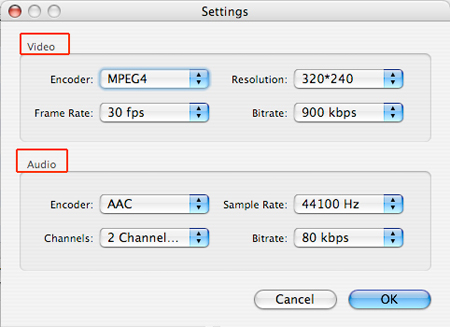
Click "Settings" to set the exact video and audio parameters to fit for your player.


Step 3: Click "Start" button to begin the conversion
Wait a short moment, the conversion will be finished soon.

More editing functions:
1. Set audio track and subtitles for your converted video
"Audio Track" and "Subtitle" are under the preview window
2. Get any time-length video clips
Click "Trim" button to open the trim window, you can set the exact begin and end time for your clips or just drag the slider bar.


3. Adjust the video play region
Click "Crop" to open the crop window to crop off the black edges around your video or adjust any video play region. You can also set the video play ratio when playing on player: keep original, full screen, 16:9, 4:3.


4. Set the video effect
Click "Effect" to adjust the video Brightness, Contrast, Saturation and Volume for you to get the perfect playing effect.
5. Join several chapters of your DVD into one file
Select the chapters that you want to join, and then pick "Merge into one file". After conversion, these chapters will be saved into one file.

Part 2: How to Convert video to popular video on OS X

Step 0: Run the Tipard DVD Rippre Pack Mac and select Tipard Video Converter for MAC


Step 1: Add files
Click "Add File" to add your video files.
Step 2: Set output video format
Click "Profile" button from the drop-down list to select the output video format such as AVI, MPG, MPEG and WMV. You can click the "Settings" button to set parameters of your output video such as Frame Rate, Bitrate to get the best video quality as you want.
Step 3: Click the "Start" button to start the conversion.

OK! Now you can enjoy your HD DVD or your favorite Videos on your portable devices.

9/26/2010

How to make your own free iPhone Ringtone(Windows/Mac)

Part 1: How to make iPhone Ringtone on Windows
Step 0: Download and install Tipard iPhone Ringtone Maker


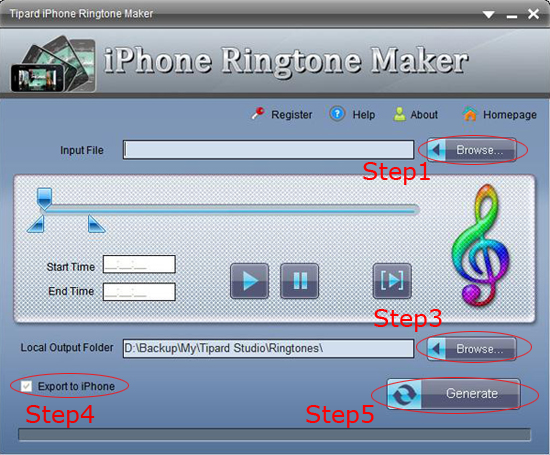
Step 1: Click "Browse…" button on the right side of "Input File" to import the file(audio or video file) that you want to make ringtone from it.
Step 2: Click button to listen the music to find the segment that you want to use it as ringtone.
Then drag and click the start & end slider to set your wanted segment, or type the start & end time in the corresponding text box directly to get the exact segment. Click to pre-listen the converted audio before generate.
Step 3: Click "Browse…" button on the right side of "Local Output Folder" to choose the output destination.
Step 4: Check "Export to iPhone" option, the converted ringtone will be load to your iPhone directly.
Step 5: After all the settings are finished, click "Generate" button to begin making your own iPhone ringtone.

Key functions
*Tipard iPhone Ringtone Maker can create iPhone ringtone from any audio files
*Convert any video to iPhone ringtone M4R
*Get any clips from video and audio
*Transfer to iPhone as ringtone directly
*Support pre-fade listen

Part 2: How to make iPhone Ringtone on Mac
Step 0: Download and install Tipard Ringtone Maker for Mac


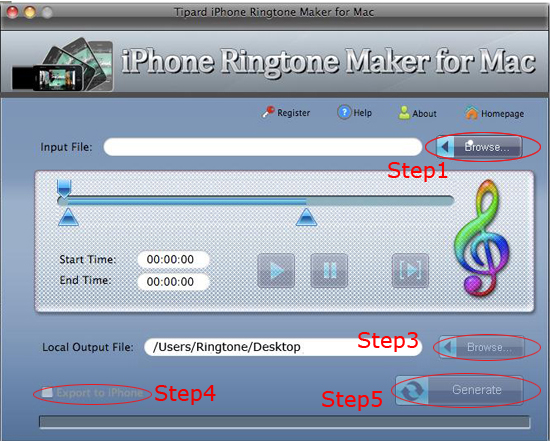
Step 1: Click "Browse…" button on the right side of "Input File" to import the file(audio or video file) that you want to make ringtone from it.
Step 2: Click button to listen the music to find the segment that you want to use it as ringtone.
Then drag and click the start & end slider to set your wanted segment, or type the start & end time in the corresponding text box directly to get the exact segment. Click to pre-listen the converted audio before generate.
Step 3: Click "Browse…" button on the right side of "Local Output Folder" to choose the output destination.
Step 4: Check "Export to iPhone" option, the converted ringtone will be load to your iPhone directly.
Step 5: After all the settings are finished, click "Generate" button to begin making your own iPhone ringtone.

Now no matter you are Windows or Mac users, making your own free iPhone Ringtone is so easy, so what are you waiting for?

9/23/2010

How to enjoy video on Apple TV?

Firstly, Tipard Apple TV Video Converter for Mac


Step 0: Free download and install Tipard Apple TV Video Converter for Mac ( Intel Version and Power PC Version).
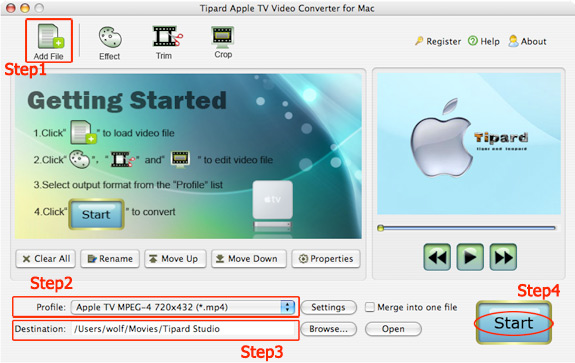
Step 1: Click "Add File" to load video or audio files.
Step 2: Click "Profile" to select the right format you want. Moreover, you can set your own favorite mode by clicking "Settings".
Step 3: Click "Browse" to specify a location on your computer to save the converted video. If you want to open the output folder, you can just click "Open Folder".
Step 4: Click "Start" button to start conversion.


Apple TV Video Converter for Mac

Some other functions are here:
1. Trim:
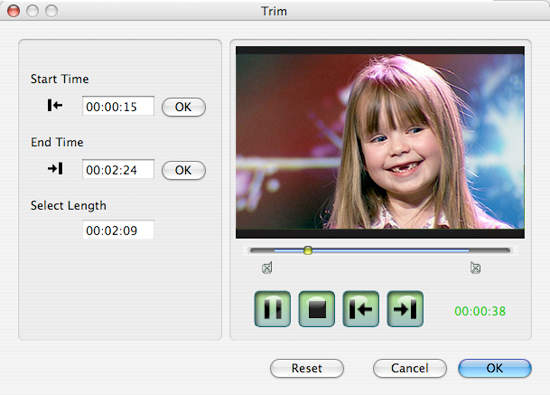
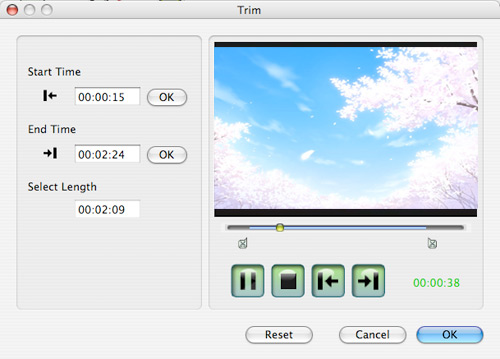
With this function you can capture your favorite clips from your video. Click the "Trim" button and a Trim Window appears as follows:

Trim

Enter the start time in the "Start Time" box and click "OK", then enter the end time in the "End Time" box and click "OK" and finally click "OK" on the lower.
2. Crop:
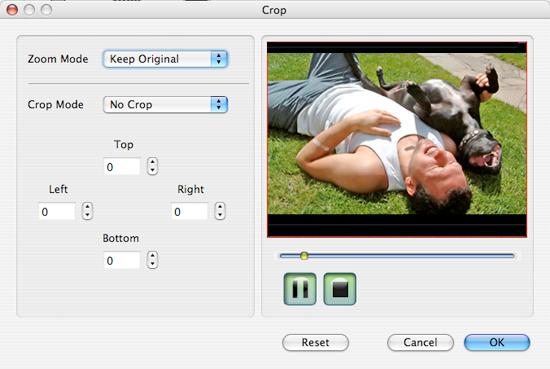
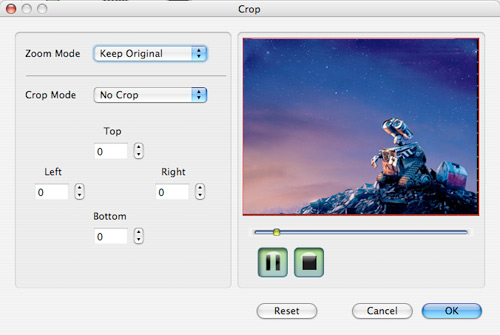
You can easily remove the black edges around your video and customize the size of video play region. Click the "Crop" button and a Crop Window comes out before you as follows:

Crop

Select a crop mode in the Crop Mode drop-down list and click "OK" to save the crop. There are six pre-set crop modes for your choice.
3. Merge several chapters of video into one files
You could enjoy a single long movie by clicking "Merge into one file" button to merge several short videos.
OK, your conversion is finished now.

Secondly, Tipard Apple TV Video Converter

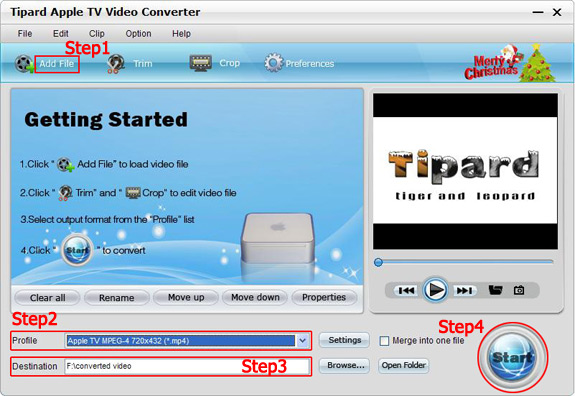
Step 0: Free download and install Tipard Apple TV Video Converter.
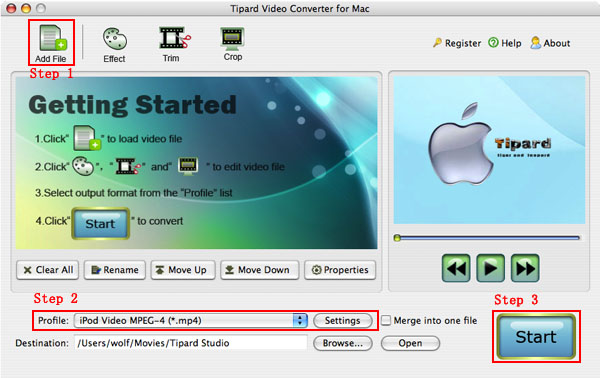
An interface comes out after installation:
Step 1: Click "Add File" to load video or audio files.
Step 2: Click "Profile" to select the right format you want. Moreover, you can set your own favorite mode by clicking "Settings".
Step 3: Click "Browse" to specify a location on your computer to save the converted video. If you want to open the output folder, you can just click "Open Folder".
Step 4: Click "Start" button to start conversion.

Apple TV Video Converter

Some other functions are here:
1. Trim:
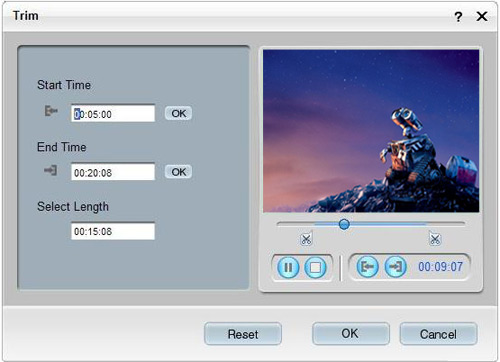
With this function you can capture your favorite clips from your video. Click the "Trim" button and a Trim Window appears as follows:

Trim

Enter the start time in the "Start Time" box and click "OK", then enter the end time in the "End Time" box and click "OK" and finally click "OK" on the lower.
2. Crop:
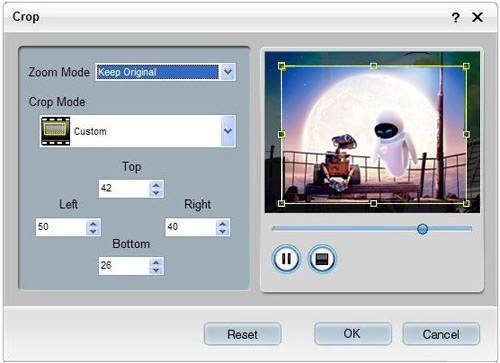
You can easily remove the black edges around your video and customize the size of video play region. Click the "Crop" button and a Crop Window comes out before you as follows:

Crop

Select a crop mode in the Crop Mode drop-down list and click "OK" to save the crop. There are six pre-set crop modes for your choice.
3. Merge several chapters of video into one files
You could enjoy a single long movie by clicking "Merge into one file" button to merge several short videos.
OK, your conversion is finished now.

9/19/2010

How to enjoy all music on your MP3 Player?

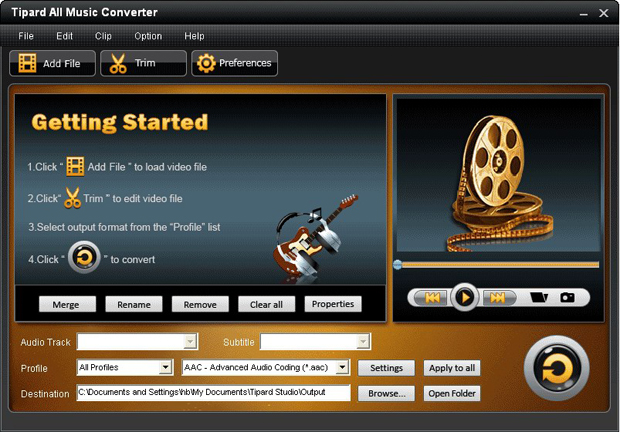
Make Preparations: Install and run Tipard All Music Converter .

Step 1. Load Songs
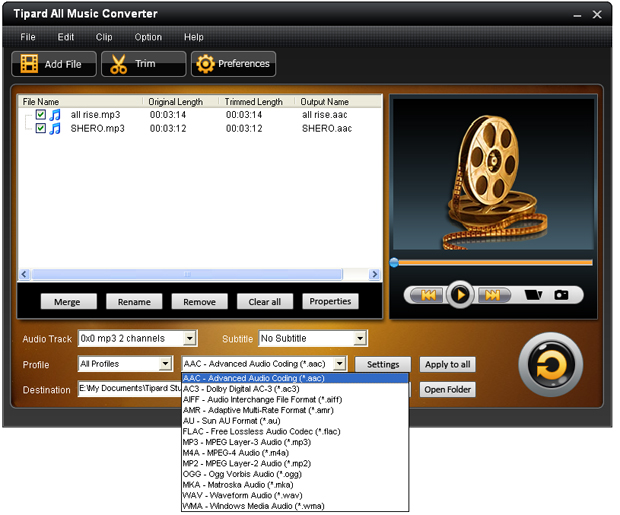
You can load your songs by clicking "Add File" button or clicking "File" button, you can choose "add file" on a drop-down list.


Add files

Step 2. Output format and Settings
From the "Profile" drop-down list you can find one format that meets your requirement.

Output formats

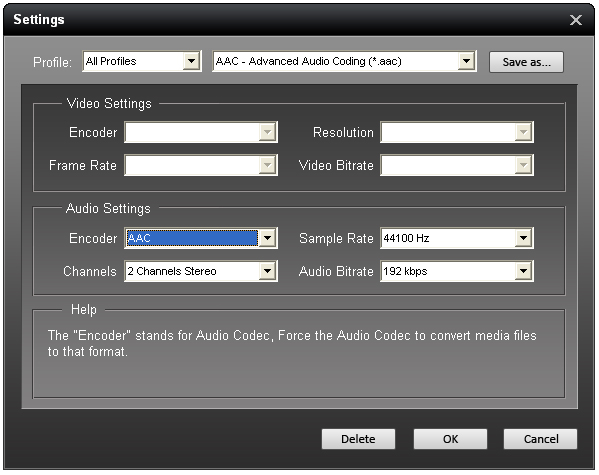
To have your own audio settings you can click "settings" button.

Settings

After doing the steps above, you can click "start" button to start conversion.

Note: Tipard All Music Converter also an Audio Extractor which has the capability of extracting audio track from videos to all the popular music formats for all the music players.

Tips:
1. Trim any segment of your song

The "Trim" function also servers as an Audio splitter. You can set the "Start Time" and "End Time" to set the duration or you can directly drag the slide bar to the accurate position.

2. Merge several songs into one file

Just pick the songs that you want to convert, and then click "merge into one file". The converted files will be saved into one file.

Related Tools:
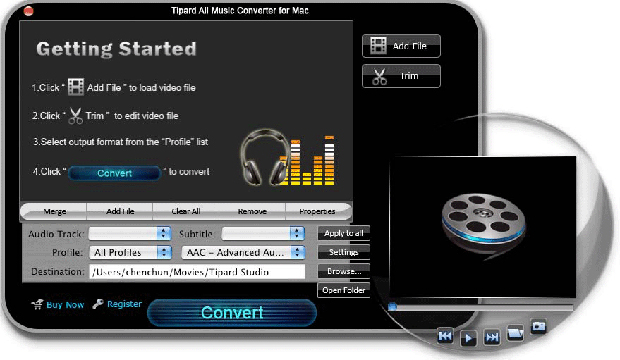
1: Tipard All Music Converter for Mac: Convert any audio formats to your MP3 Player supported audios such as MP3, M4A, AAC, WMA, WAV, AC3, OGG, RAM, RA, etc for Mac users.

All Music Converter for Mac

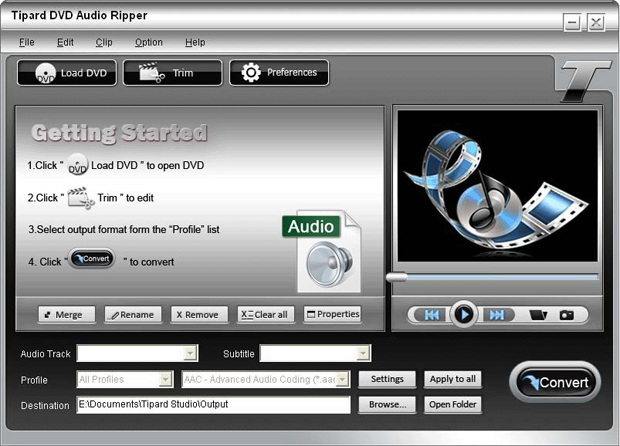
2: Tipard DVD Audio Ripper(Windows)--- Tipard DVD Audio Ripper for Mac(Mac): Not only can convert DVD music to MP3, M4A, AAC, WMA, WAV, AC3, OGG, RAM, RA, etc, but also can extract audio then rip the classical dialogue and songs in your DVD movie for your MP3 player.

DVD Audio Ripper

Good news:
Now you can get many DVD and video conversion tools released by Tipard Studio at a satisfactory price. Most products are at discount now and you can you visit the Tipard Colorful Spring Garden to get a wonderful experimence.
No waiting, Just try now!

9/15/2010

How to enjoy DVD/Video/Music on iPod Touch/Nano 4/Classic

Part 1: How to enjoy DVD on iPod
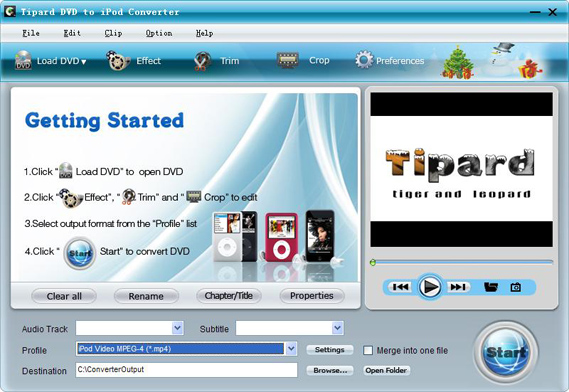
Step 0: Download Tipard DVD to iPod Converter.


Step 1: Load DVD.
Click "Load DVD" to add your DVD contents.
Step 2: Set output video format
Click "Profile" button from the drop-down list to select the exact output video format that is the most suitable for your iPod. You can click the "Settings" button to set parameters of your output video such as such as Resolution, Video Bitrate, Frame Rate, Audio Channels, Sample Rate, etc. to get the best video quality as you want.
Step 3: Click the "Start" button to start the conversion.

Tips:
1: How to join your selected chapters
If you want to merge several chapters into one file you can choose them and click the "Merge into one file" to do it.
2: How to split your video
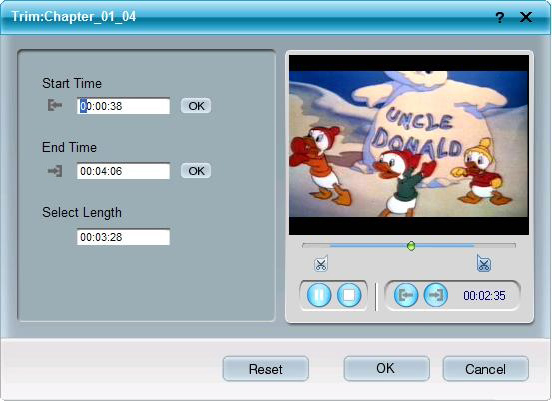
The "Trim" function also servers as a video splitter for you to get any time-length video episode. You can set the "Start Time" and "End Time" to set the time of the clip or you can directly drag the slide bar to the accurate position.


3: How to crop off the black edges and adjust the size of video play region
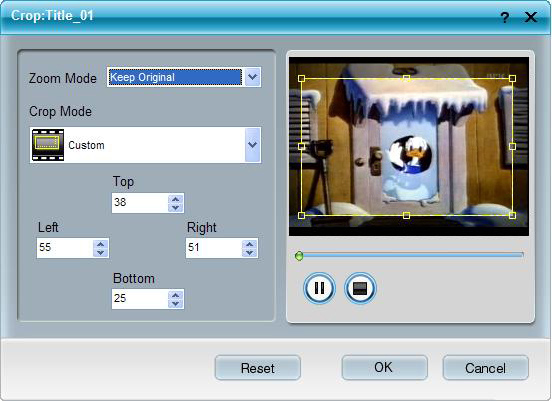
By using the "Crop" function you can crop the black edge of your video and you can also drag the line around the video image to adjust the video play region to fit for your mobile devices.


4: How to save your favorite picture
If you like the current image when preview video, you can use the "Snapshot" option. Just click the "Snapshot" button the image will be saved and you can click the "Open" button next to "Snapshot" button to open your picture.

Part 2: How to enjoy video on iPod

Step 0: Download and install Tipard iPod video converter
Step 1: Click "Add File" to load your video


Step 2: Click the "Profile" button to select your favorite iPod video
Step 3: Click "Start" to start your conversion.

Tips:
You can also use the powerful editing functions such as using "Snapshot" to catch your favorite image and "Trim" to get any clip of your video and so on..

Part 3: How to enjoy music on iPod

Make Preparations: Install and run Tipard All Music Converter .

Step 1. Load Songs
You can load your songs by clicking "Add File" button or clicking "File" button, you can choose "add file" on a drop-down list.


Step 2. Output format and Settings
From the "Profile" drop-down list you can find one format that meets your requirement.


To have your own audio settings you can click "settings" button.


After doing the steps above, you can click "start" button to start conversion.

Note: Tipard All Music Converter also an Audio Extractor which has the capability of extracting audio track from videos to all the popular music formats for all the music players.

Tips:
1. Trim any segment of your song
The "Trim" function also servers as an Audio splitter. You can set the "Start Time" and "End Time" to set the duration or you can directly drag the slide bar to the accurate position.

2. Merge several songs into one file
Just pick the songs that you want to convert, and then click "merge into one file". The converted files will be saved into one file.

Related Tools:
1: Tipard All Music Converter for Mac: Convert any audio formats to your MP3 Player supported audios such as MP3, M4A, AAC, WMA, WAV, AC3, OGG, RAM, RA, etc for Mac users.


2: Tipard DVD Audio Ripper(Windows)
Tipard DVD Audio Ripper for Mac
: Not only can convert DVD music to MP3, M4A, AAC, WMA, WAV, AC3, OGG, RAM, RA, etc, but also can extract audio then rip the classical dialogue and songs in your DVD movie for your MP3 player.


Good news:
Now you can get many DVD and video conversion tools released by Tipard Studio at a satisfactory price. Most products are at discount now and you can you visit the Tipard Colorful Spring Garden to get a wonderful experimence.
No waiting, Just try now!

9/13/2010

How to enjoy DVD and Video on Creative Zen (Windows/Mac)

Part 1. The audio and video formats Creative Zen supports
Audio formats: MP3, WMA, WMA
Video formats: AVI, MPEG-1/2/4-SP, Windows Media? Video (WMV) 9, Motion-JPEG, DivX 4 / 5, XviD

Part 2. How to convert any DVD to Creative Zen supported video formats

Things You will need: Tipard DVD to Creative Zen Converter (Mac Version / Windows Version), Creative Software.

Step 1. Download and install Tipard DVD to Creative Zen Converter.

Mac Intle users: Click Here to download.
Mac PowerPC users: Click Here to download.
Windows users: Click Here to download.

Let's take Tipard DVD to Creative Converter (windows version) as an example:


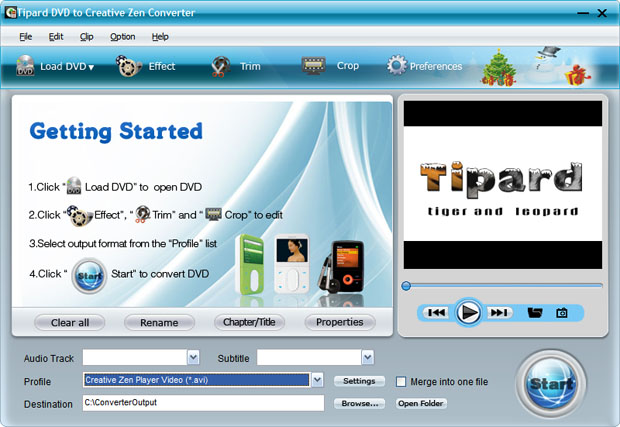
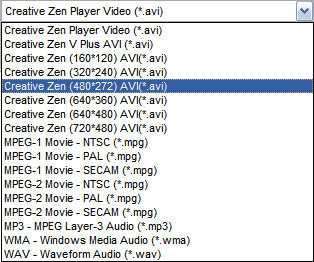
Step 2. Load your DVD and select the right output format (avi) for Creative Zen.


Tipard DVD to Creative Zen Converter lets you select DVD subtitle and audio track to convert DVD movie with any available language, along with setting video brightness, contrast, saturation and so on. It also allows you to choose any chapters or titles to convert and trim the length of each title or chapter.

Step 3. Start the Conversion
After you choose the right output format file and make some settings, click "Start". You can choose to shut down your computer or open the output folder after conversion.

Part 3. How to convert videos and music to the formats Creative Zen player supports

Things you will need: Tipard Creative Zen Video Converter (Mac Version/ Windows Version).

Step 1. Download and install Tipard Creative Zen Video Converter

Mac Intle users: Click Here to download.
Mac PowerPC users: Click Here to download.
Windows users: Click Here to download.

Let's take Tipard Creative Zen Video Converter (windows version) as an example:


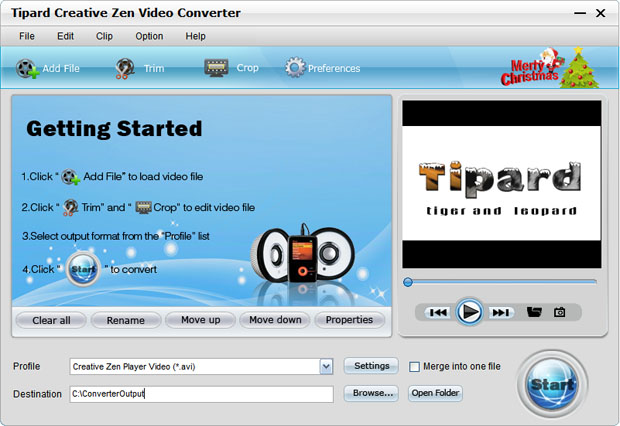
Step 2. Load your videos and select the right output format

If you want to convert videos to Creative Zen, you can select .AVI as the output format file.
If you want to convert music to Creative Zen, you can select .MP3 as the output format file.
This video conversion software lets you set video brightness, contrast, saturation, crop video, trim video and even merge multiple files into one file.

Step 3. Start the Conversion

After you choose the right output format file and make some settings, click "Start". You can choose to shut down your computer or open the output folder after conversion so you don't have to sit before your computer waiting for the conversion to finish.

Part 4. How to transfer converted videos to your Creative Zen

Open up your program (Zen V Series Media Explorer), and connect Zen V Plus. Select "Convert Video". This option is a must, because videos are viewed in the format as Uncompressed AVI. This is large format, and can generally be a pain.
After that, select "Transfer". This will bring up some options, choose the appropriate, NOT widescreen.

Let it convert & transfer.

Now you have successfully put DVD,video, and music onto your Creative Zen!

9/09/2010

How to enjoy any DVD on iPod /iPhone

Part 1: How to enjoy DVD on iPod Touch/Nano 3/Classic.

Step 0: Download Tipard DVD to iPod Converter.


Step 1: Load DVD.
Click "Load DVD" to add your DVD contents..
Step 2: Set output video format
Click "Profile" button from the drop-down list to select the exact output video format that is the most suitable for your iPod. You can click the "Settings" button to set parameters of your output video such as such as Resolution, Video Bitrate, Frame Rate, Audio Channels, Sample Rate, etc. to get the best video quality as you want.
Step 3: Click the "Start" button to start the conversion.

Tips:
1: How to join your selected chapters
If you want to merge several chapters into one file you can choose them and click the "Merge into one file" to do it.
2: How to split your video
The "Trim" function also servers as a video splitter for you to get any time-length video episode. You can set the "Start Time" and "End Time" to set the time of the clip or you can directly drag the slide bar to the accurate position.


3: How to crop off the black edges and adjust the size of video play region
By using the "Crop" function you can crop the black edge of your video and you can also drag the line around the video image to adjust the video play region to fit for your mobile devices.


4: How to save your favorite picture
If you like the current image when preview video, you can use the "Snapshot" option. Just click the "Snapshot" button the image will be saved and you can click the "Open" button next to "Snapshot" button to open your picture.

Part 2: How to enjoy DVD on iPhone/iPhone 3G.

Step 0: Download and install Tipard DVD to iPhone Converter.


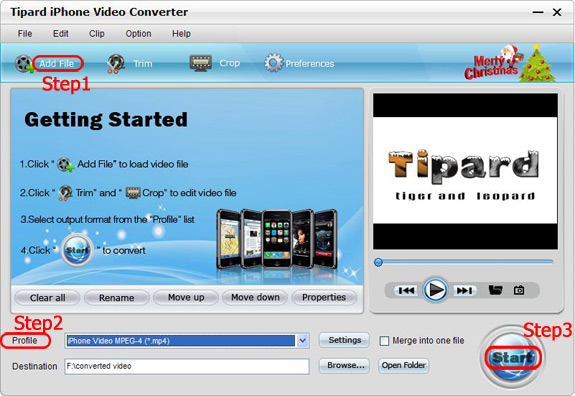
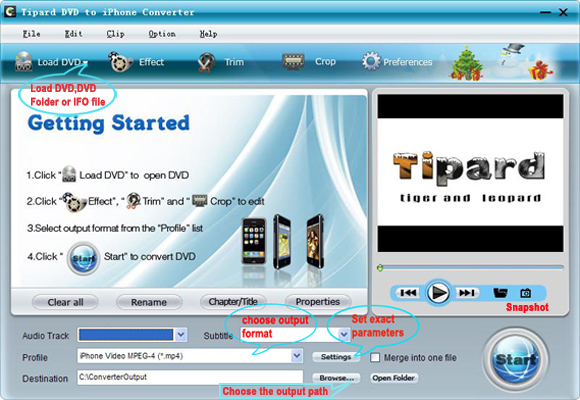
Step 1: Run this DVD to iPhone Converter and load your input DVD files.
It allows you to load DVD, Load DVD Folder and Load IFO File.

Step 2: Set up the output profile and the output file path.
Tipard DVD to iPhone Converter can convert DVD into iPhone MP4, MOV, H.264 video formats and iPhone audio MP3, M4A, AAC, WAV.

This converter provides more video and audio parameters for you to get the perfect video quality for your player. Click "Settings" button to set it.
Click "Browse" to choose the path for you to save the converted file.

Step 3: Start conversion
After you set all the settings, you can click "Start" to start conversion.

Tips:
Some powerful and professional editing functions are also available such as effect, trim, crop and so on. You can refer to the tutorial of Tipard DVD to iPod Converter above.

9/07/2010

How to convert Mod/Tod/AVI/WMV/RM to any video formats

1: .Mod and .Tod videos are mainly produced by digital harddisk camcorder such as JVC camcorder and so on. It is not common video formats and can only be played on some special players.
2:Tipard Mod Converter(Windows)and Tipard Mod Converter for Mac are all professional mod video converters. They can convert Mod and Tod videos to any popular video formats such as AVI, WMV, RM, RMVB, MP3, etc.
3: Tipard Video Converter (Windows) and Tipard Video Converter for Mac can convert AVI/WMV/RM/MKV/3GP,etc to any popular video formats supported by your portable devices supported videos.

This guide shows how to convert your Mod/Tod/WMV/AVI/RM video to popular video formats supported by your portable devices.

Part 1: How to convert Mod/Tod to any video format (For Windows)

Step 0: Free download and install Tipard Mod Converter.
Step 1: Run Tipard Mod Converter and load your Mod/Tod files.
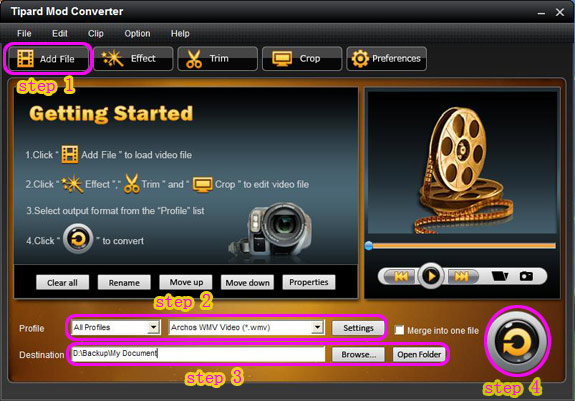


Step 2: Setup the output profile and the output file path.
Step 3: Start conversion
After you set all the settings, you can click "Start" to start conversion.

Tips:
1: How to join your file pieces
If you want to merge several files into one file you can choose them and click the "Merge into one file" to do it.
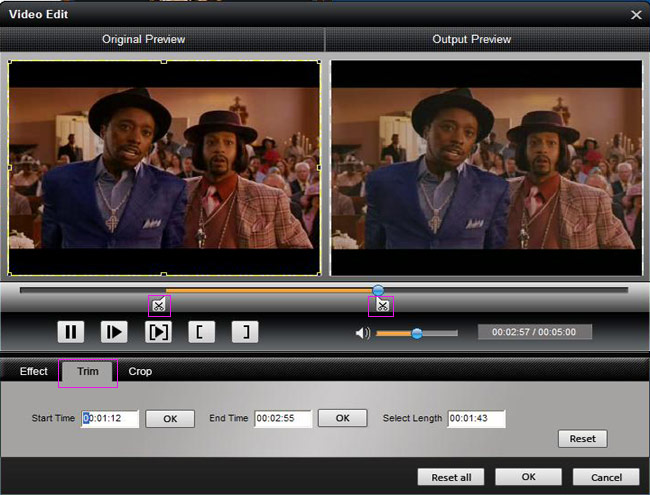
2: How to split your video
The "Trim" function also servers as a video splitter for you to get any time-length video episode. You can set the "Start Time" and "End Time" to set the time of the clip or you can directly drag the slide bar to the accurate position.


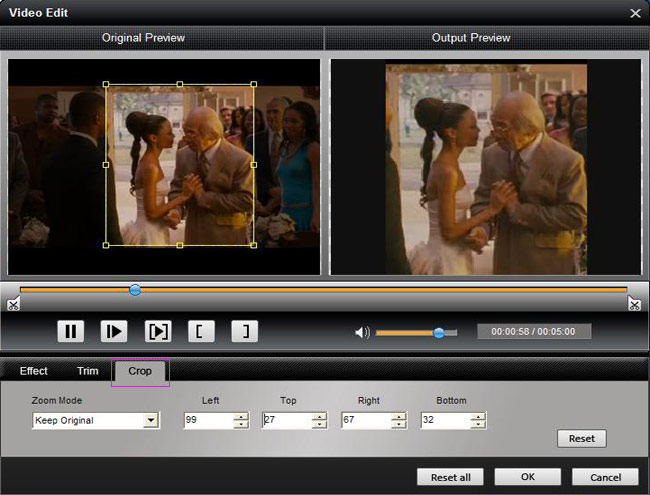
3: How to crop off the black edges and adjust the size of video play region
By using the "Crop" function you can crop the black edge of your video and you can also drag the line around the video image to adjust the video play region to fit for your mobile devices.


4: How to save your favorite picture
If you like the current image when preview video, you can use the "Snapshot" option. Just click the "Snapshot" button the image will be saved and you can click the "Open" button next to "Snapshot" button to open your picture.

Part 2: How to convert Mod/Tod to any video format (For Mac)

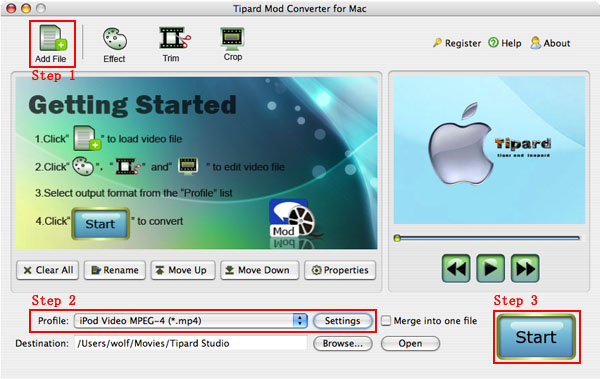
Step 0: Install and run Tipard Mod Converter for Mac (Intel Users or Power PC Users)


Step 1: Add files
Click "Add File" to add your video files.
Step 2: Set output video format
Click "Profile" button from the drop-down list to select the output video format such as AVI, MPG, MPEG and WMV. You can click the "Settings" button to set parameters of your output video such as Frame Rate, Bitrate to get the best video quality as you want.
Step 3: Click the "Start" button to start the conversion.

Tips:
1: Split your Mod/Tod video
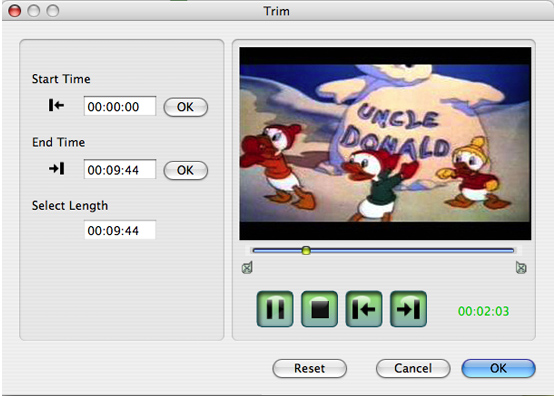
The "Trim" function also servers as a video splitter. You can set the "Start Time" and "End Time" to set the time of the clip or you can directly drag the slide bar to the accurate position. After cutting your Mod/Tod videos into small clips you can upload them to YouTube, Myspace and so on to share your video with people of the world.


2: Crop your Mod/Tod video size
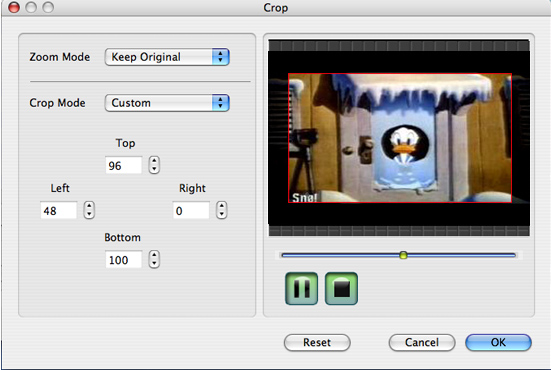
By using the "Crop" function you can crop the black edge of your video and you can also drag the line around the video image to adjust your video to your mobile devices. With it you can enjoy and share your DV with other people anytime and anywhere.


3. Set your Mod/Tod Movie Effect
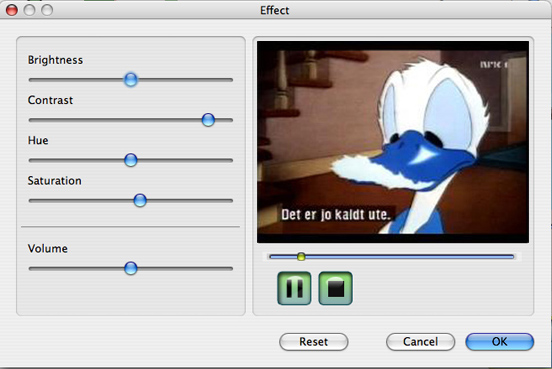
If you want to change the original video effect, you can click the Effect icon to set the video brightness, contrast, saturation, etc. You can also set the special effect for your movie to cater to your need.


4: Merge your Mod/Tod videos
If you want to merge several Mod/Tod videos into one file you can choose them and click the "Merge into one file" to do it.
5: Capture your favorite picture
If you like the current image of the video you can use the "Snapshot" option. Just click the "Snapshot" button the image will be saved and you can click the "Open" button next to "Snapshot" button to open your picture.

Part 3: How to convert AVI/WMV/RM/MKV/3GP…to popular video formats.

For Windows:

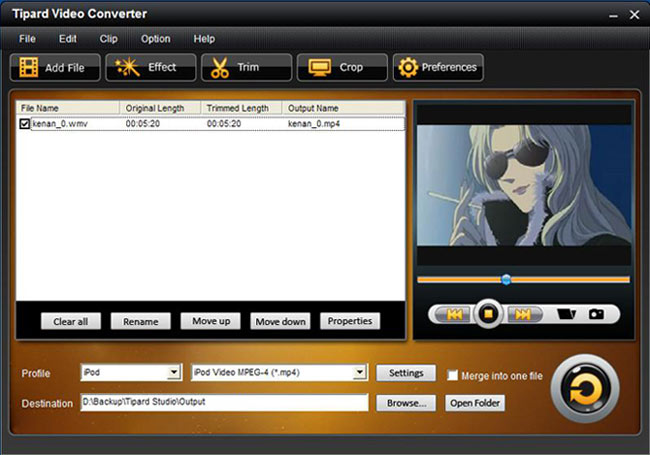
Step 0: Download and install Tipard Video Converter
Step 1.Click the "Add File" button to load video file.
Step 2. Video setting
Select the output video formats you want from the drop-down list of profile
Note:
By cicking the "Setting" button, you can set the video parameters and audio tract.
step 3.Click the "Start" button to start conversion, it is very fast and in a short while your conversion will be finished.

For Mac User:

Step 0: Download Tipard Video Converter for Mac (Intel: Power PC )
Step 1.Click the "Add File" button to load video file.
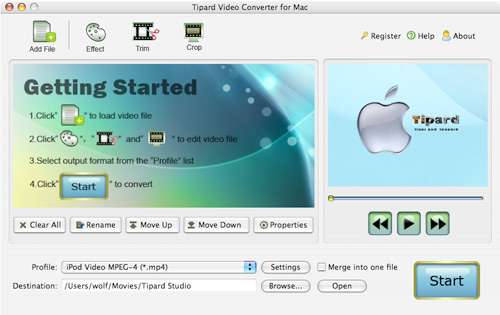


Step 2. Video setting
Select the output video formats you want from the drop-down list of profile
step 3.Click the "Start" button to start conversion

Tips:
Some powerful editing functions such as "snapshot", "Trim". "Crop", "Merge" are also available on Tipard Video Converter for both Windows and Mac version.

Now you can enjoy your Mod/Tod/WMV/AVI/RM/MKV videos on your iPod/PSP/iPhone/Zune/Sansa/Mobile Phone/Zen……at any time and everywhere.
9/04/2010

How to convert MKV to AVI, WMV, MP4, MOV, 3GP, FLV, etc

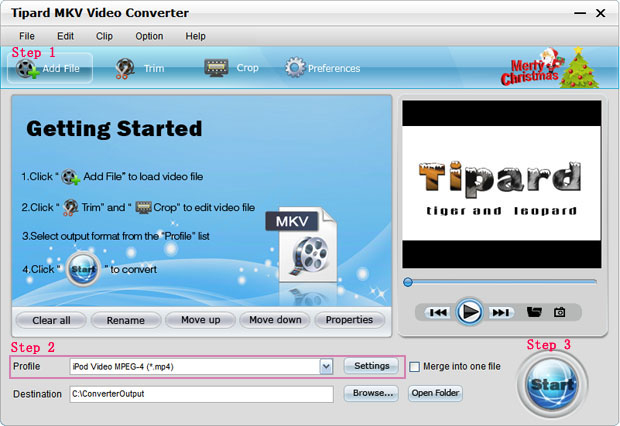
Step 0: Install and run Tipard MKV Video Converter


Step 1: Add files
Click "Add File" to add your video files.
Step 2: Set output video format
Click "Profile" button from the drop-down list to select the output video format such as AVI, MPG, MPEG and WMV. You can click the "Settings" button to set parameters of your output video such as Frame Rate, Bitrate to get the best video quality as you want.

Step 3: Click the "Start" button to start the conversion.

Tips:

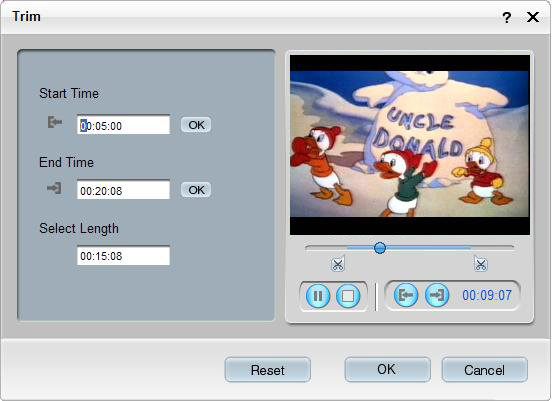
(1) Trim any segment
There are 3 ways that you can trim your video.
a.You can drag the button to set the start and end time
b.You can preview the video first and when you want to start trim click the left one of the pair button when you want to end click the right one.
c.You can set the exact start and end time on the left side of the trim window.


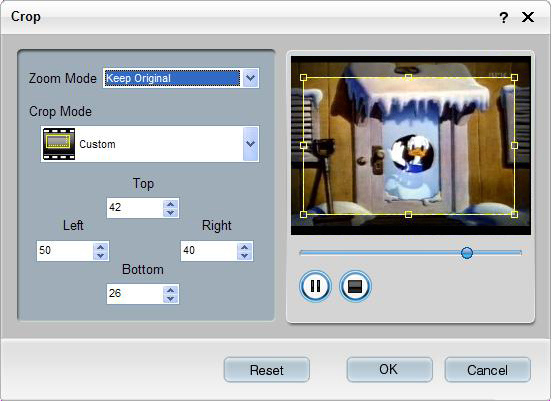
(2) Crop any play region
There are 3 ways that you can crop your video.
a.We provide 7 modes on our "Crop Mode"
b.You can set your own mode on the left side of the crop window
c.You can drag frame to set your own crop mode


(3) Snapshot and merge into one file
If you like the current image of the video you can use the "Snapshot" option. Just click the "Snapshot" button the image will be saved and you can click the "Open" button next to "Snapshot" button to open your picture.
If you want to make several files output as one you can choose "Merge into one file".

For Mac users:

Step 0: Install and run Tipard MKV Video Converter(Mac)(Intel Version; Power PC Version)


Step 1: Add files
Click "Add File" to add your video files.
Step 2: Set output video format
Click "Profile" button from the drop-down list to select the output video format such as AVI, MPG, MPEG and WMV. You can click the "Settings" button to set parameters of your output video such as Frame Rate, Bitrate to get the best video quality as you want.
Step 3: Click the "Start" button to start the conversion.

The Mac Version has the same functions as the Windows Version.